1. Enable Analytics in your Advanced Installer packaging project
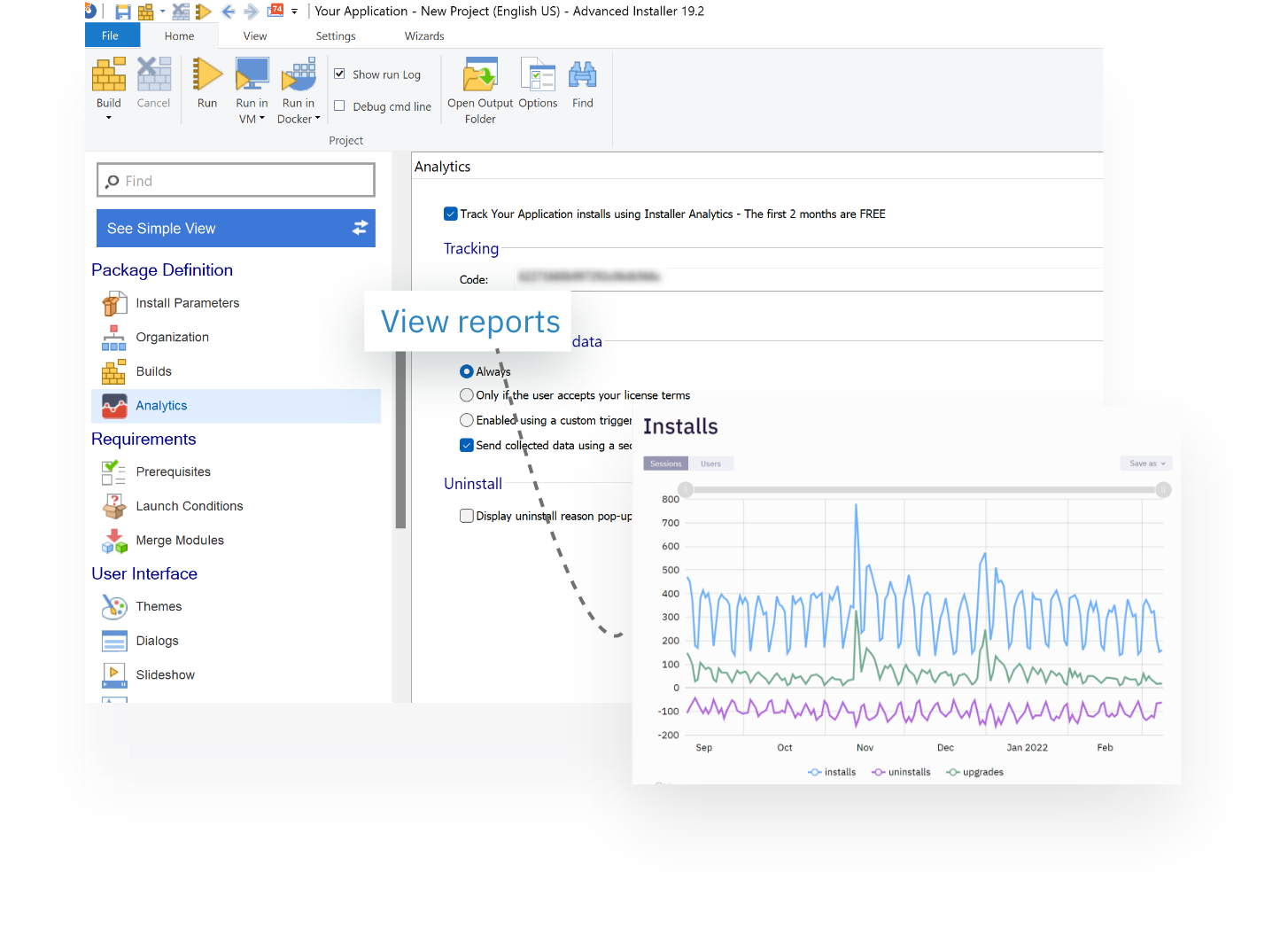
In your Advanced Installer project, enable tracking by clicking on the checkbox within the "Analytics" section, located under the "Package Definition" tree list.
- Enable the Analytics checkbox
- Configure the tracking options
- Get 1 month of free Analytics. No signup required!
* Needs Advanced Installer version 12.0+

2. Package and release your desktop app
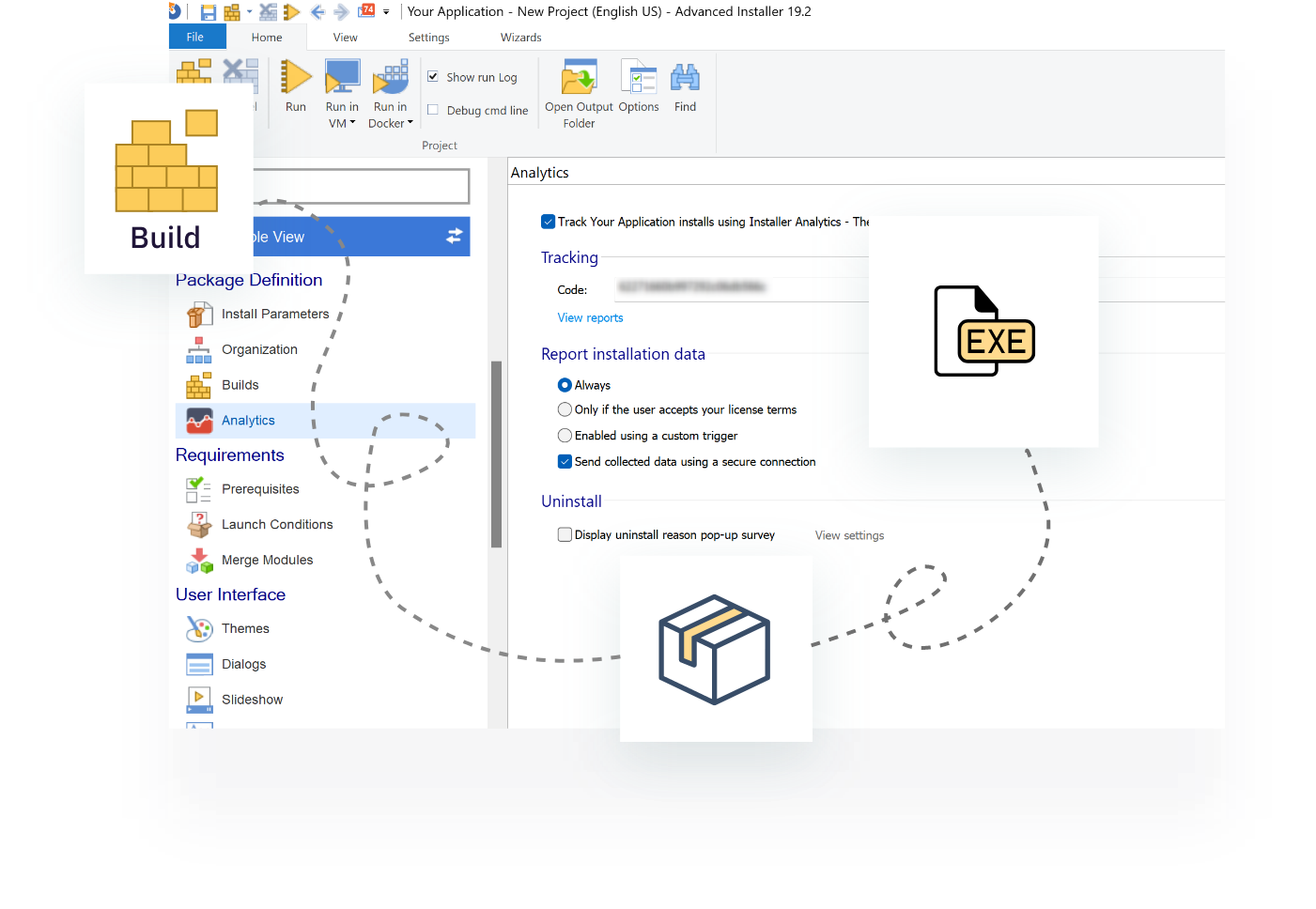
Save, build, and release the package to your customers.
- Save and build your Advanced Installer project
- Release the package to your clients for installation
- Installer Analytics receives installation data
3. Analyse the data using Installer Analytics
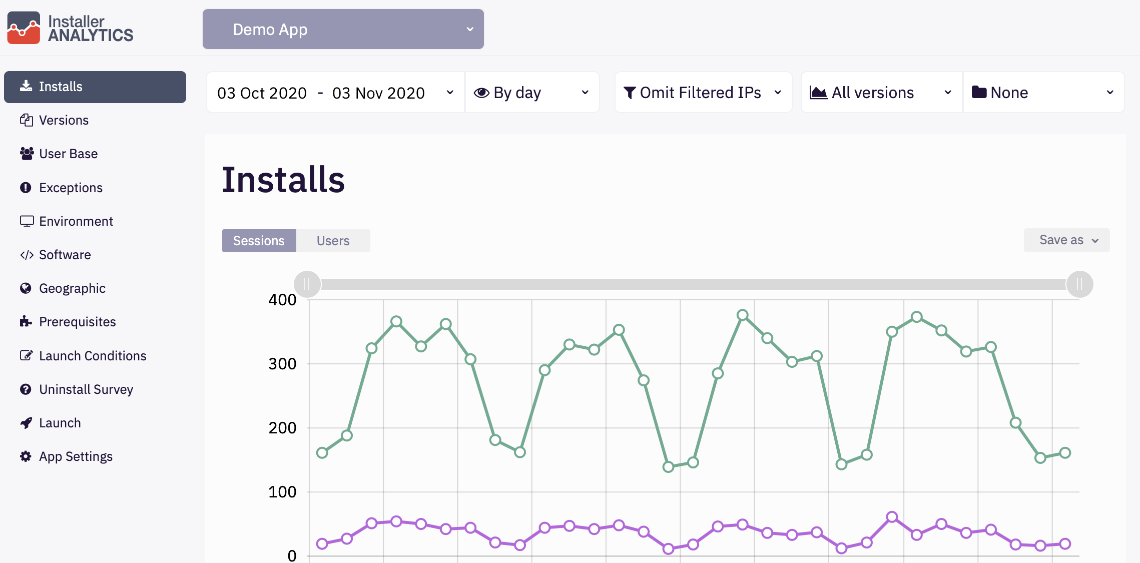
Once your users install the package, Installer Analytics will receive the data. Analyze installation data using the Installer Analytics modern web interface.
- Access analytics using the "View reports" link from Advanced Installer
- Make improvement decisions based on installation data
- Sign up for an Installer Analytics account and get 1 extra month of free analytics >
- Import your application into your Installer Analytics account